Why Sign-Off?
Goal Sign-Off is a way for managers and employees to formally agree on a goal at the start of a cycle.
When a goal is "Signed Off," its targets and description are locked to prevent changes mid-cycle. However, the goal owner can (and should) continue to update their progress toward completion.
Note: This feature is optional. If you do not see the "Sign Off" button, your Organisation Admin may not have enabled this feature yet.
Why use Goal Sign-Off?
- Alignment: It ensures the manager and employee agree on precisely what needs to be achieved before work begins.
- Accountability: It prevents "moving the goalposts" (e.g., lowering a target or changing a due date) later in the quarter to make the goal look "green" or "On Track."
- Clarity: Once signed off, the employee knows the expectations are set and won't change without a conversation.
Locked Scope vs. Editable Progress
The most important concept to understand is that Sign-Off locks the "What," but leaves the "How" open.
In TeamMaven, changing the scope of a goal is done by clicking Modify on the Goal or one of its Metrics. Updating Progress focuses on progress towards completing the Metrics.
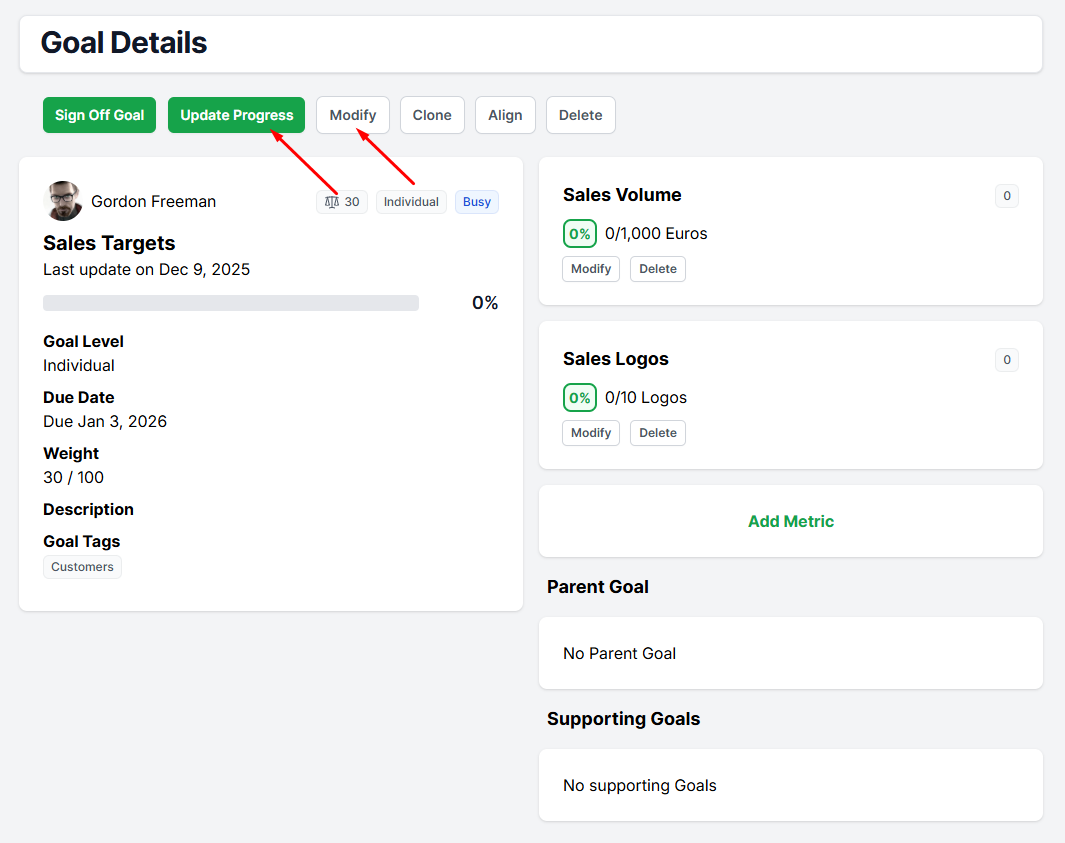
| LOCKED (The Scope) | EDITABLE (The Progress) |
| You cannot change these without unlocking: | You can always update these: |
| • Goal Name & Description | • Current Metric Values (e.g., increasing sales form 0 to 10k) |
| • Due Date | • Status (On Track / At Risk / Off Track) |
| • Metric Targets & Weights | • Marking as Complete |
| • Alignment & Privacy Settings | • Archiving the Goal |
For Managers: How to Sign Off on a Goal
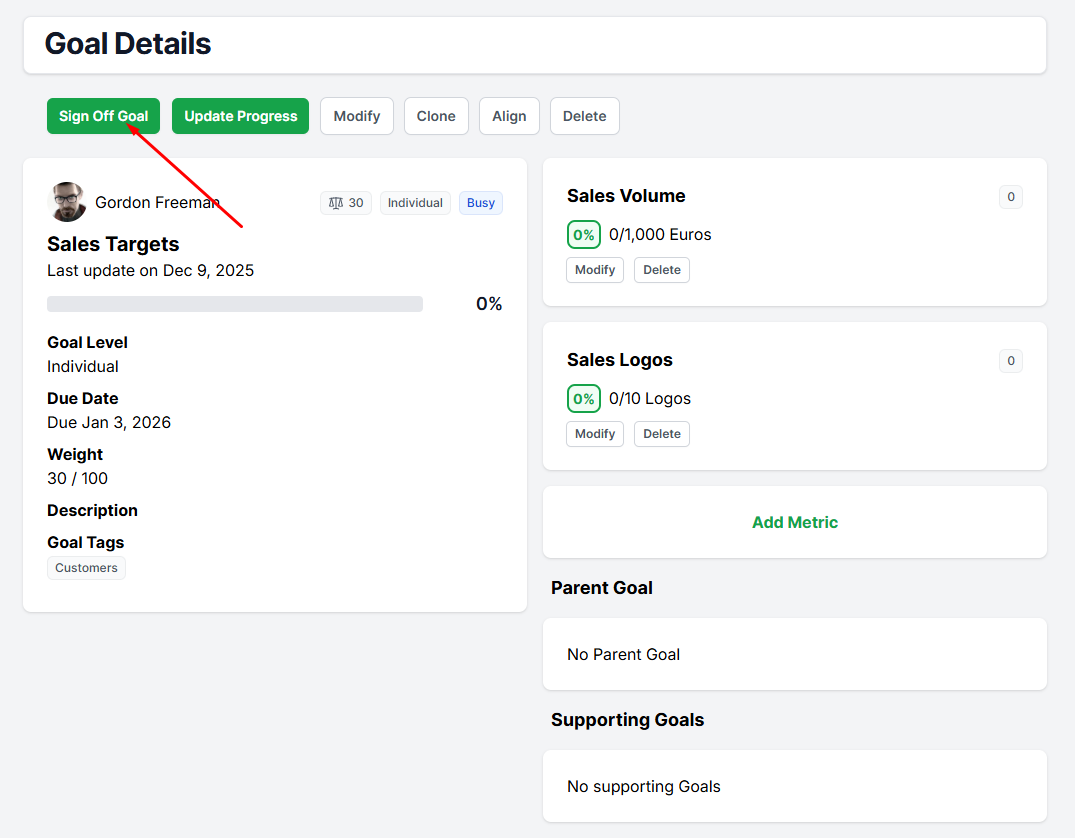
Only the goal owner's direct Manager (or an Admin) can sign off on a goal.
- Navigate to the Goal View page (via Goals → Search or your Team view).
- Review the goal to ensure the description, metrics, and due date are correct.
- Click the Sign Off Goal button at the top of the page.
- Confirm the action in the pop-up window.
Once confirmed, the goal will display a "Signed Off" badge and a checkmark icon.
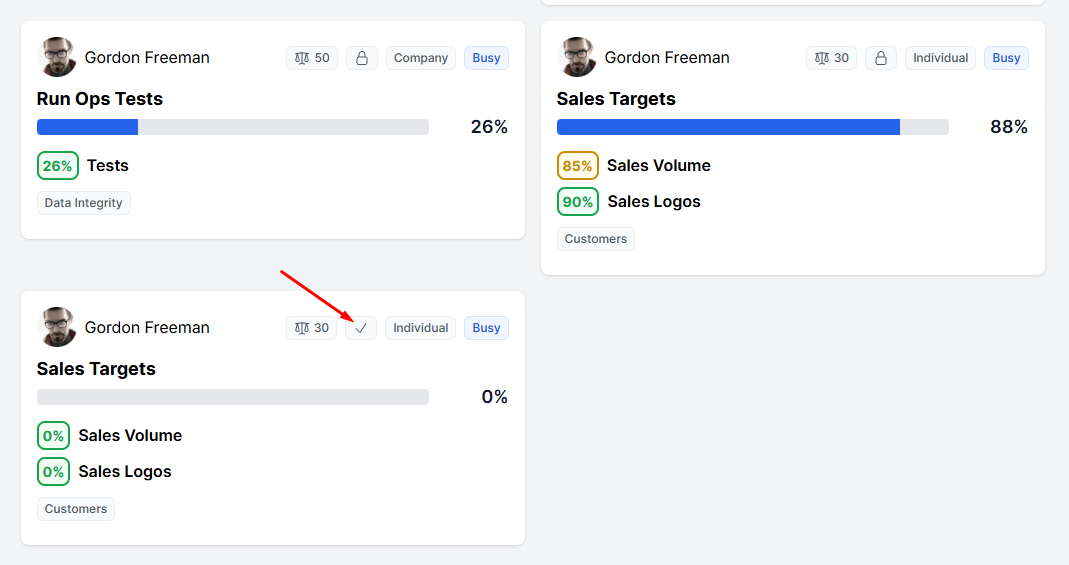
The goal scope can no longer be modified by anyone unless the sign off is reverted.
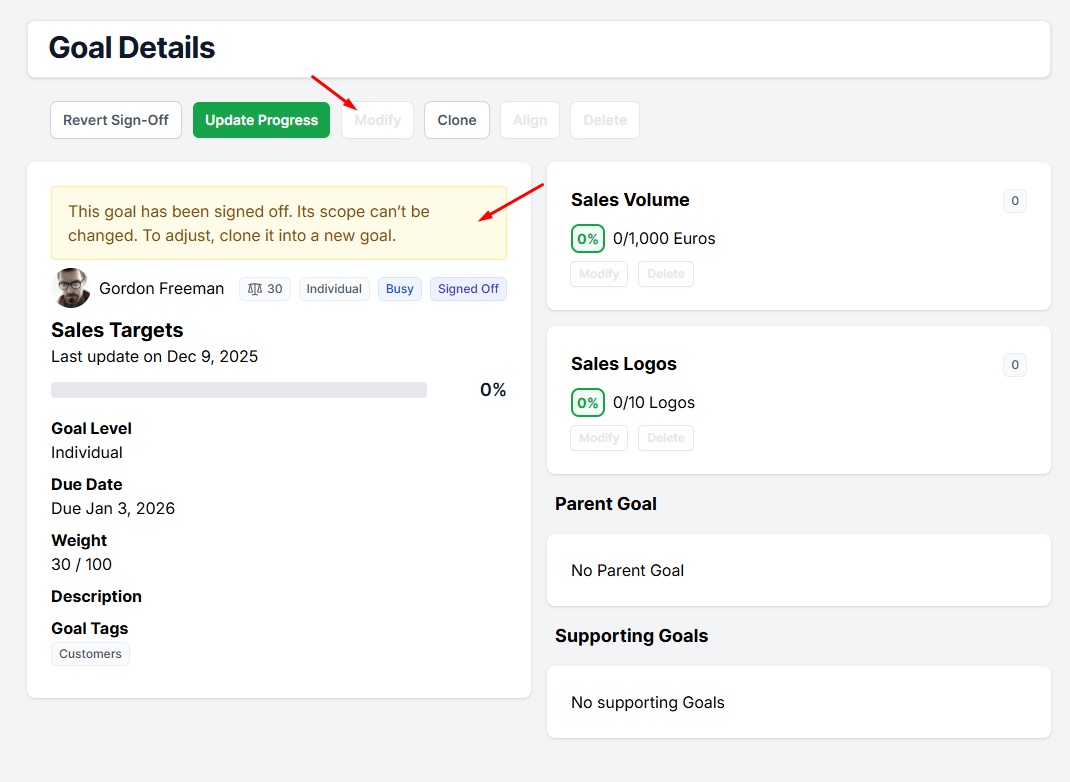
How to Edit a Signed-Off Goal (Reverting)
If you need to change the scope of a goal (e.g., business priorities shifted and the target is no longer relevant), the Manager must first unlock the goal.
- Open the Goal View page.
- Click Revert Sign-Off.
- The goal is now unlocked. The employee or manager can edit the scope (Title, Metrics, etc.).
- Optional: The Manager can sign it off again once the changes are made.
Frequently Asked Questions
I reverted the sign-off, but the goal is still locked. Why?
A goal might be locked for two reasons. If the goal is currently pulled into an active Performance Review, it will remain locked even if you revert the sign-off.
Can an employee sign off on their own goal?
No. Sign-off is a confirmation action that the Manager or an Admin must do.
Does the employee get notified?
Yes, the goal owner will see a "Signed Off" badge on their goal, and if they attempt to edit the name or metrics, they will see a message explaining that the goal has been signed off.
Was this article helpful?
That’s Great!
Thank you for your feedback
Sorry! We couldn't be helpful
Thank you for your feedback
Feedback sent
We appreciate your effort and will try to fix the article