Your Growth Plan is your personal space for career development. It holds your Growth Vision and the growth areas you are working on. You have one plan for as long as you are with your company. There are no cycles or deadlines built in. You update it whenever your focus changes.
To open it, go to Growth > My Growth Plan. Your plan is created automatically the first time you visit, so there is nothing to set up.
Set your Growth Vision
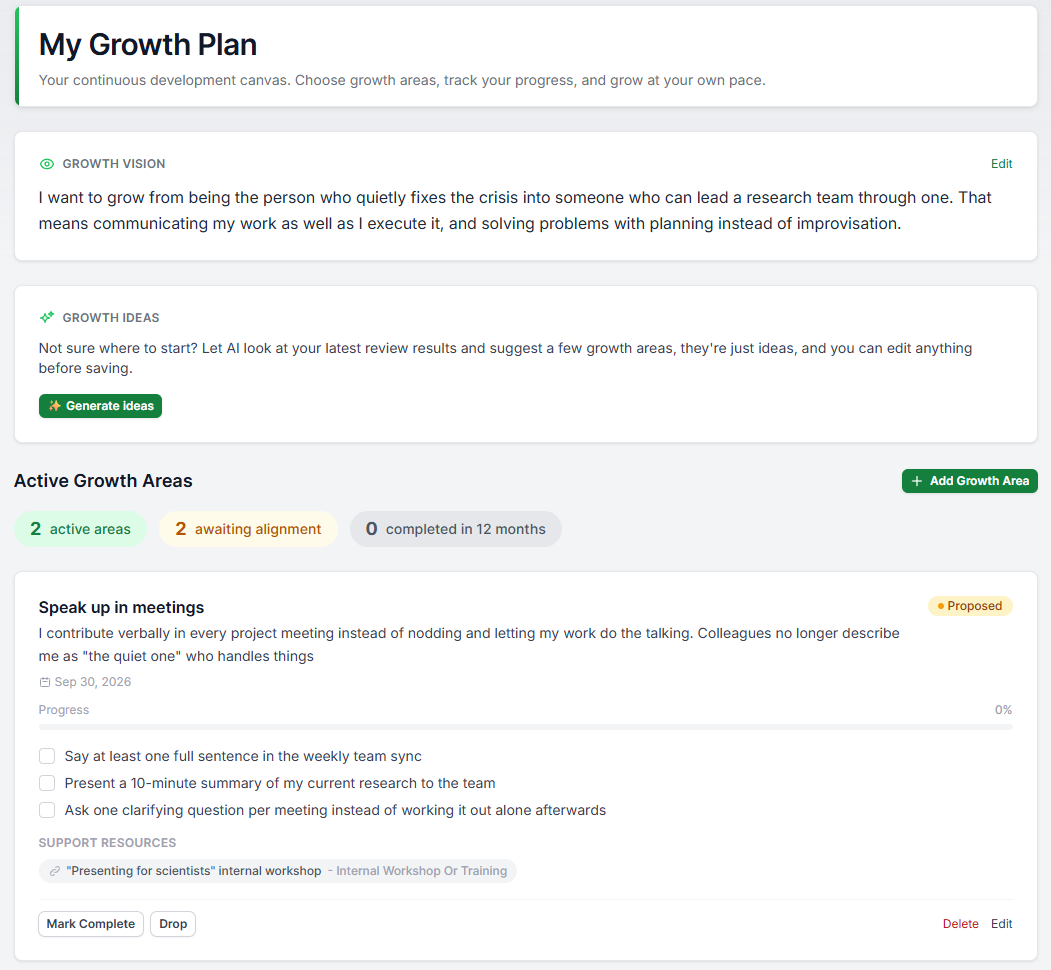
Your Growth Vision is a short statement about where you want your career to go. It sits at the top of your plan, and you edit it right there on the page.
Two to four sentences is plenty. Think about the kind of work you want to be doing in a few years, not a job title. A clear vision makes it easier to pick growth areas that actually move you forward.
When you are happy with it, confirm it. Your plan will show when you last confirmed your vision, so your manager knows it is current.
Add a growth area
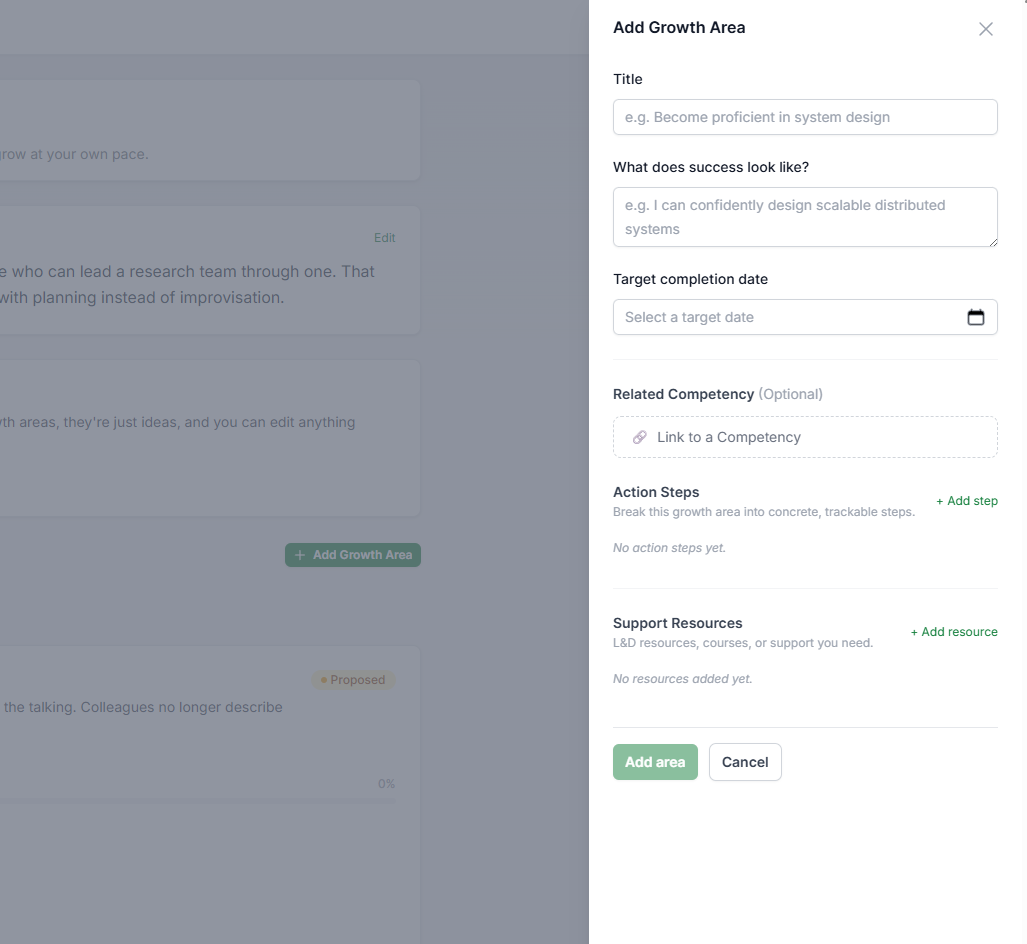
A growth area is one skill or capability you want to build. Click Add Growth Area to open the editor. You can fill in:
- Title. Name the skill you are building, for example "Presenting to senior stakeholders".
- Success statement. Describe what it looks like when you get there.
- Target completion date. When you aim to get there. Optional, but it helps you and your manager check in on progress.
- Action steps. Small, concrete steps you can tick off. A step can also track a number, like reading 5 chapters or shadowing 3 calls.
- Support resources. Courses, books, coaching, or anything else you need. You can add a rough cost, which helps your company plan learning budgets.
You can also link a growth area to a competency in your role. Choose whether you are aiming to master your current level or step up to the next one.
You can have up to 10 active growth areas, but most people do best with 2 or 3. A few areas with real attention beat a long wishlist.
How alignment works
Alignment is how you and your manager agree that a growth area is the right thing to work on.
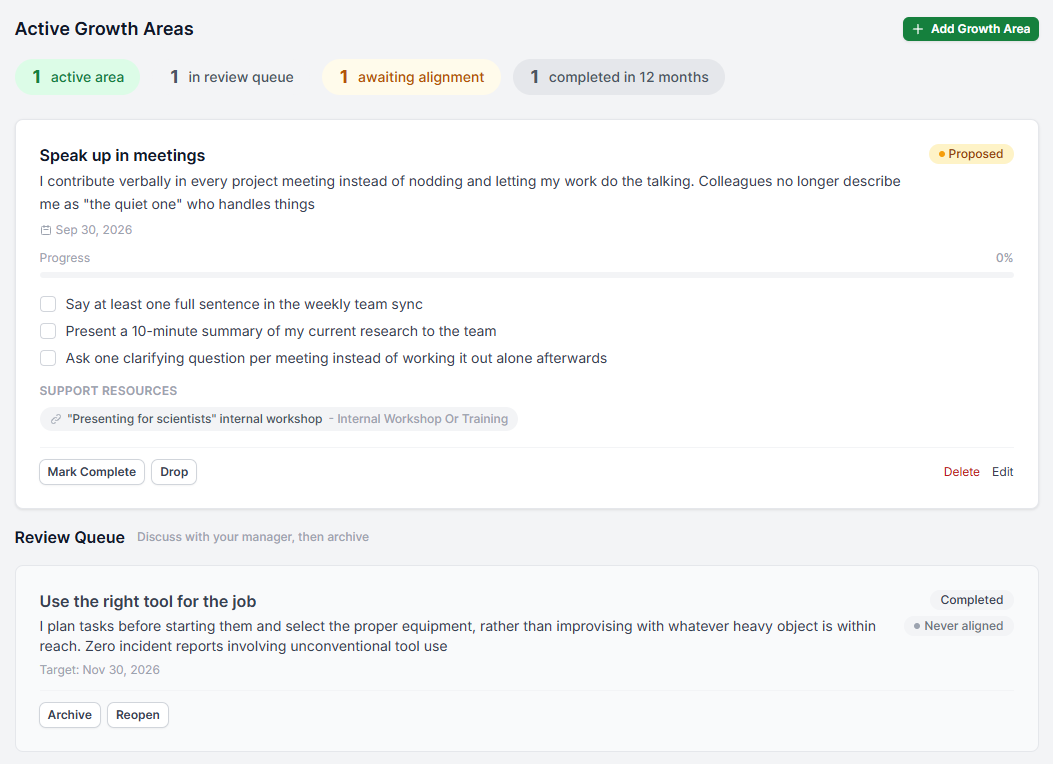
- Every new area starts as Proposed. This means it is waiting for your manager to review it.
- When your manager signs off, the area shows a green Aligned badge, along with who aligned it and when.
- If you later change the title or the target date of an aligned area, the badge changes to Modified. That tells your manager the area has changed since they last saw it, and it goes back to them for a quick re-check.
Everyday updates do not affect alignment. You can tick off action steps, edit your success statement, and add resources freely.
Your plan shows an "awaiting alignment" pill whenever something is waiting on your manager, so you always know where things stand.
Finish or drop a growth area
When a growth area runs its course, close it out. There are two ways:
- Mark Complete. You achieved it. If you clicked too soon, you can reopen it within 7 days. After that, it stays completed.
- Drop. You decided to stop working on it. That is a normal part of managing your development, because priorities change. You can reopen a dropped area at any time.
Completed and dropped areas move to your Review Queue. They sit there so you and your manager can talk them through in your next one-to-one. After that conversation, click Archive to move the area into your Historic Archive at the bottom of the page. Your archive keeps your full development history, and you can unarchive an area later if you want to pick it up again.
One thing to know: you can only delete a growth area while it is still Proposed. Once your manager has aligned it, it becomes part of your development record. If it no longer fits, drop it instead.
Get ideas with Growth Ideas (Advanced Plan only)
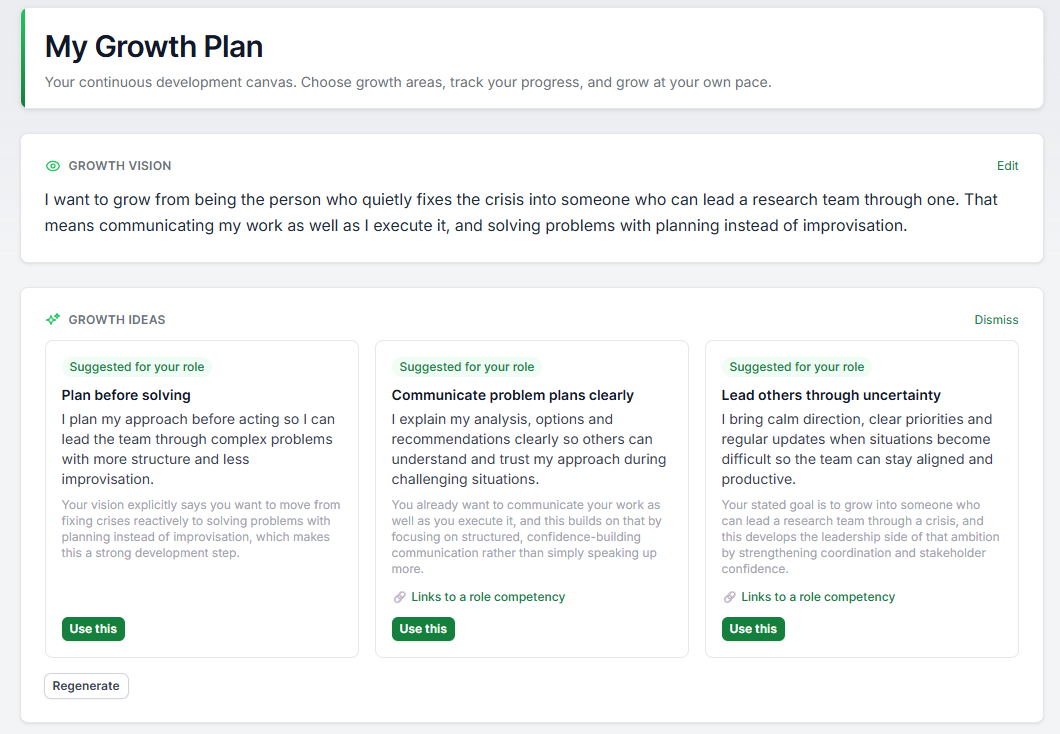
If you are not sure where to start, click Growth Ideas on your plan. TeamMaven suggests growth areas tailored to you. A few things to know:
- Suggestions are starting points, not homework. Add the ones that resonate and skip the rest. Nothing goes on your plan unless you add it.
- You can edit anything about a suggestion before or after adding it.
- Not happy with the batch? Generate again, and you will get different ideas. Each batch is meant to explore new angles rather than repeat itself.
- The suggestions are based on your role, the competencies in your role, your Growth Vision, and feedback from reviews where your company's sharing settings allow it. It never uses other people's data.
- If it can't generate suggestions for you, you will see a set of general starter ideas instead. These are clearly marked as not personalised.
Was this article helpful?
That’s Great!
Thank you for your feedback
Sorry! We couldn't be helpful
Thank you for your feedback
Feedback sent
We appreciate your effort and will try to fix the article