TL;DR: Creating a survey in TeamMaven takes just a few minutes. You can build a custom questionnaire, select from our expert templates, or mix and match. Once ready, you can launch immediately or schedule it for the perfect time.
Step 1: Survey Details
Click "New Survey" under Surveys > My Surveys on the sidebar (admin only).
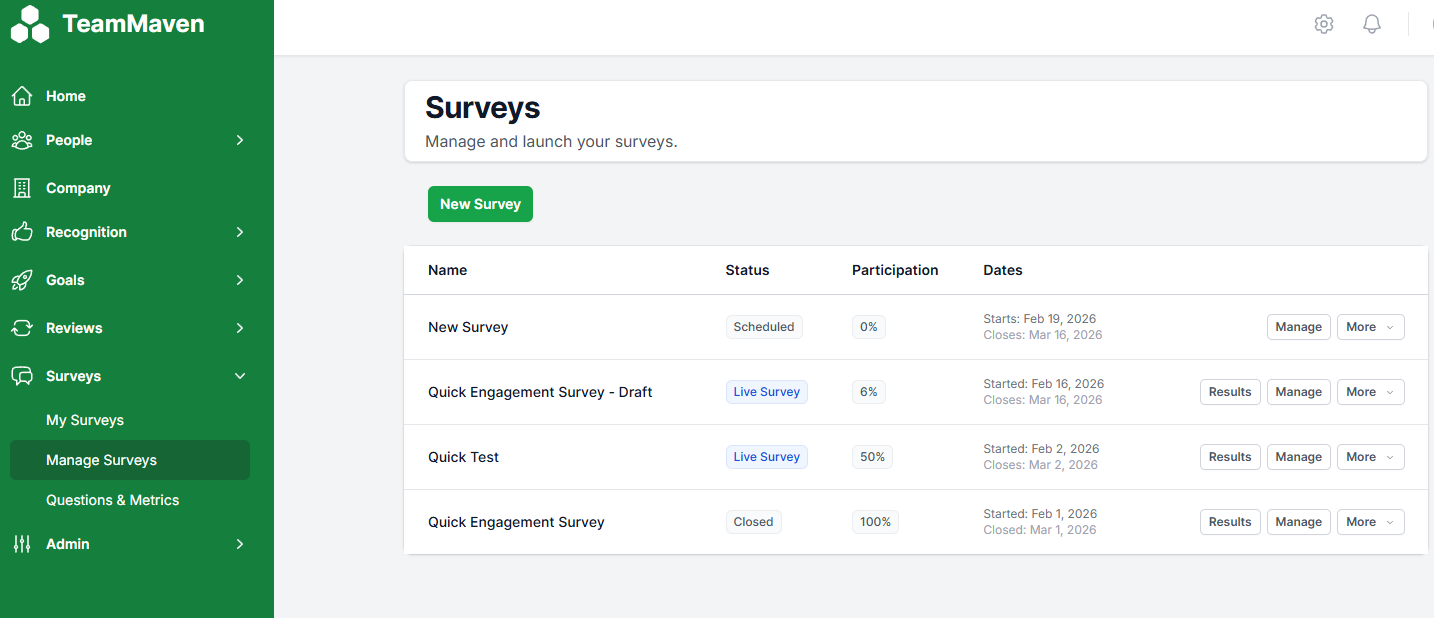
- Internal Name: This is for your eyes only (e.g., "Q3 Engagement - Engineering Only"). Use a naming convention that helps you find it later in reports.
- Welcome Title: This is what your employees will see in their email and on the welcome screen (e.g., "October Team Pulse"). Keep it friendly and professional.
- Description: A brief note setting the context.
- Tip: Mention why this feedback matters. (e.g., "We want to hear your thoughts on the recent re-org...").
Step 2: Building Your Questions
You have three ways to build your survey:
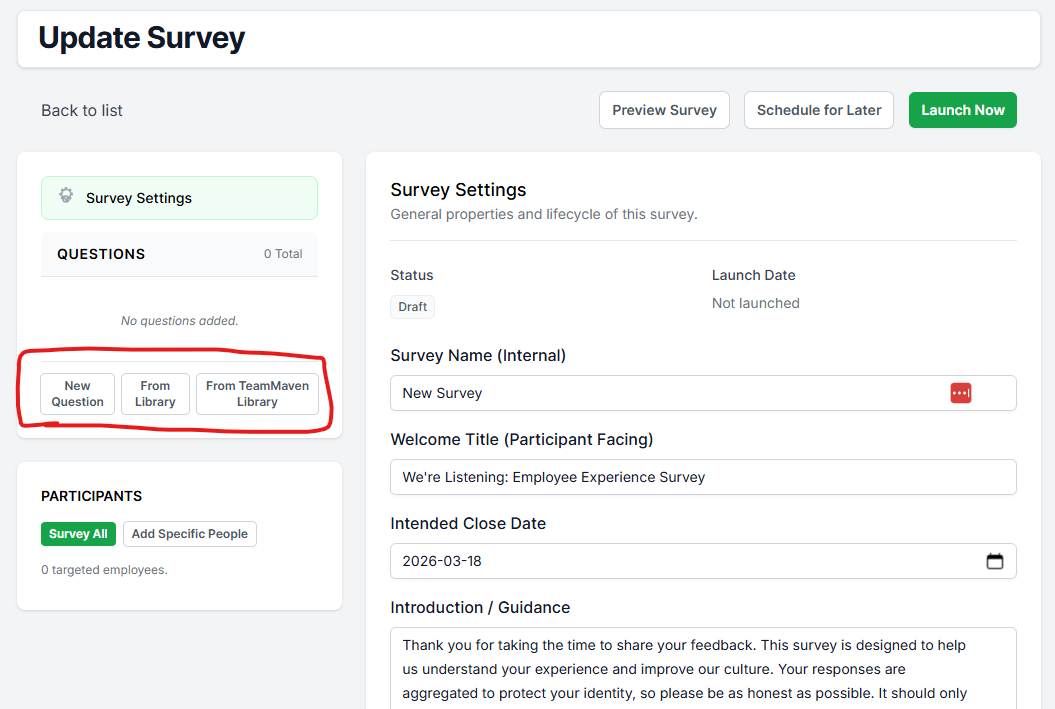
TeamMaven Master Questions (Recommended):
- Click "Add from TeamMaven Library".
- Browse our scientifically validated questions categorised by metric (e.g., Autonomy, Growth, Management).
Your Company Library:
- If you have saved custom questions from previous surveys, you can pull them in here to track trends over time.
Create Custom Question:
- Click "New Question" to write a question from scratch.
- Choose your type:
- Rating (1-5): For agreement or frequency (Recommended).
- eNPS: The standard "0-10" loyalty question.
- Open Text: For written feedback.
- Multiple Choice: For voting on specific options (e.g., "Which benefit do you value most?").
Best Practice: Keep it short. We recommend a maximum of 10-15 questions to ensure high completion rates.
Step 3: Selecting Participants
Move to the Participants panel. You don't need to add emails one by one.
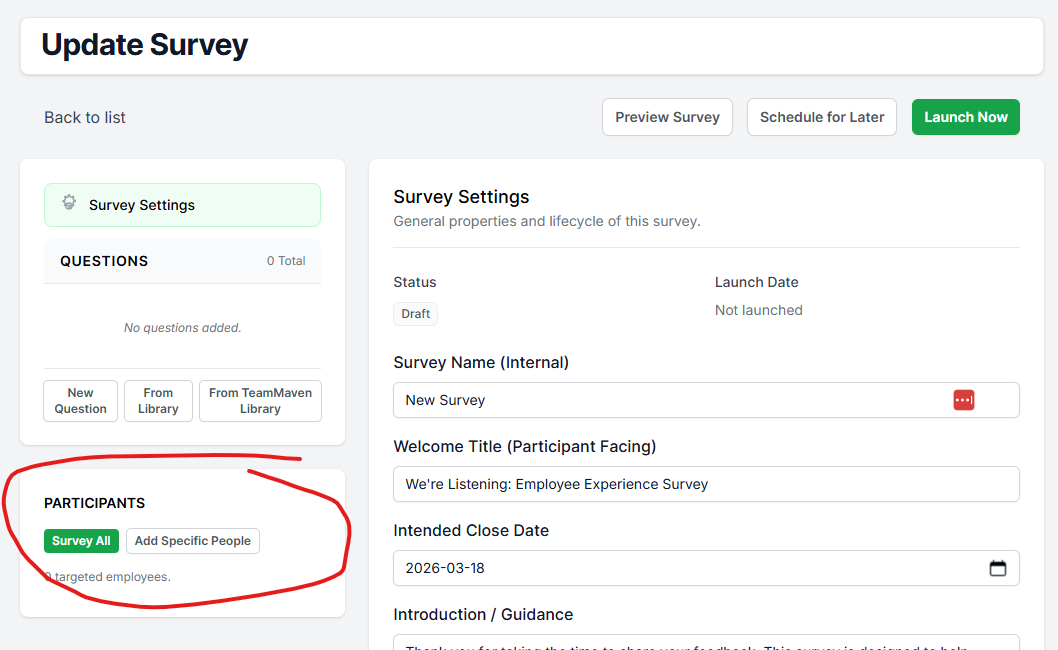
You have two primary ways to build your list:
1. Add All Active Staff:
Click the "Add All" button to instantly include every active employee in the company. This is perfect for company-wide engagement surveys.
2. Select by Group:
Use the filters to select specific segments, such as Department (e.g., "Sales") or Location (e.g., "London Office").
⚠️ Important: The List is Fixed
When you add participants, TeamMaven takes a snapshot of the list at that exact moment.
- Scenario: If you build the list today, and a new employee joins the company tomorrow, they will not be automatically included in this survey.
- The Solution (Late Adds): Don't worry, you can add people after the survey launches. Go to the Participants panel in the live survey, then click "Add Participants" to manually add any new joiners or employees missed. They will receive an invitation immediately.
Step 4: Schedule & Launch
You are almost there. Review: Check the summary. Do you have 0 questions? Is the participant list empty? The system will warn you if anything looks wrong.
Launch Options:
- Launch Now: The survey goes live immediately. Emails will start sending within 5 minutes.
- Schedule for Later: Pick a specific date.
Tip: We recommend launching on Tuesday or Wednesday mornings for the highest response rates. Avoid Friday afternoons.
That's it! Your survey is now queued. You can track progress in real-time on the Overview dashboard once it goes live.
Was this article helpful?
That’s Great!
Thank you for your feedback
Sorry! We couldn't be helpful
Thank you for your feedback
Feedback sent
We appreciate your effort and will try to fix the article