TL;DR: Your Dashboard is a real-time command centre for employee sentiment. It uses "Snapshot" data to ensure accuracy, enforces a strict Anonymity Threshold to protect privacy, and offers four distinct views to help you find the story in the data.
1. How Data is Calculated (The "Snapshot")
TeamMaven uses your HR data (Department, Location, Manager) to segment results. However, we do this in a very specific way to ensure historical accuracy.
The "Snapshot" Rule:
When a participant submits a survey, we stamp their response with their current metadata.
- Example: If "Sarah" is in Sales when she takes the survey, but moves to Marketing the next week, her feedback remains in the Sales results for that specific survey.
- Why? This ensures that feedback reflects the reality of the team at the time the experience happened, not where the employee is today.
2. The Anonymity Threshold (The "Safety Lock")
You may occasionally see sections of your dashboard turn grey or display a Lock Icon.
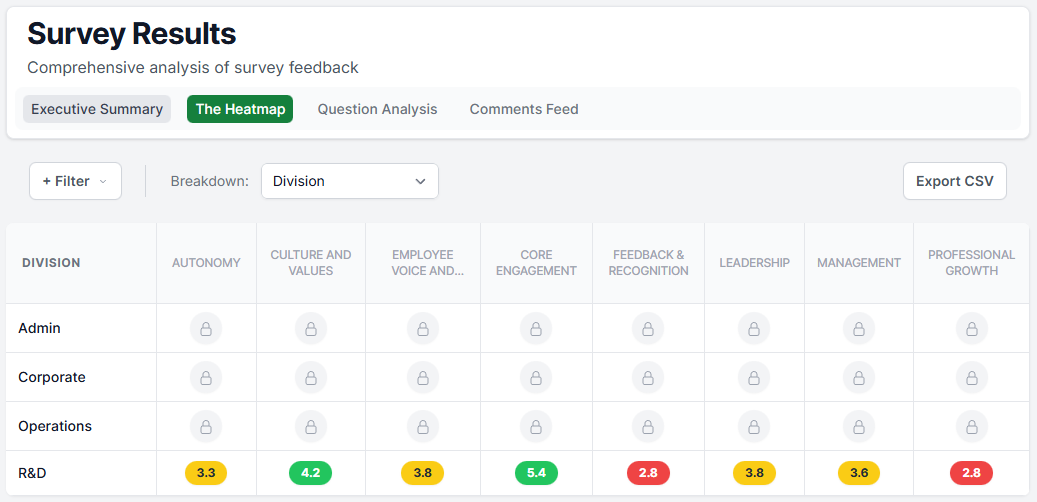
This is the Anonymity Threshold at work. To protect employee privacy, TeamMaven never displays scores or comments for groups of fewer than 5 people.
- If you filter down too far (e.g., "Interns in the Berlin Office"), the data may be hidden.
- The Fix: Simply broaden your filters (e.g., select "All Berlin Office") to reveal the aggregate data.
3. The Filter Drawer
Located at the top of every screen, the Filter Drawer lets you slice the data to identify specific trends.
- Global Application: When you apply a filter (e.g., Department: Engineering), all 4 tabs update instantly.
- Smart Logic: You can combine filters (e.g., Engineering + New York). If the resulting group has fewer than 5 members, the "Safety Lock" will automatically engage.
4. The Four Result Views
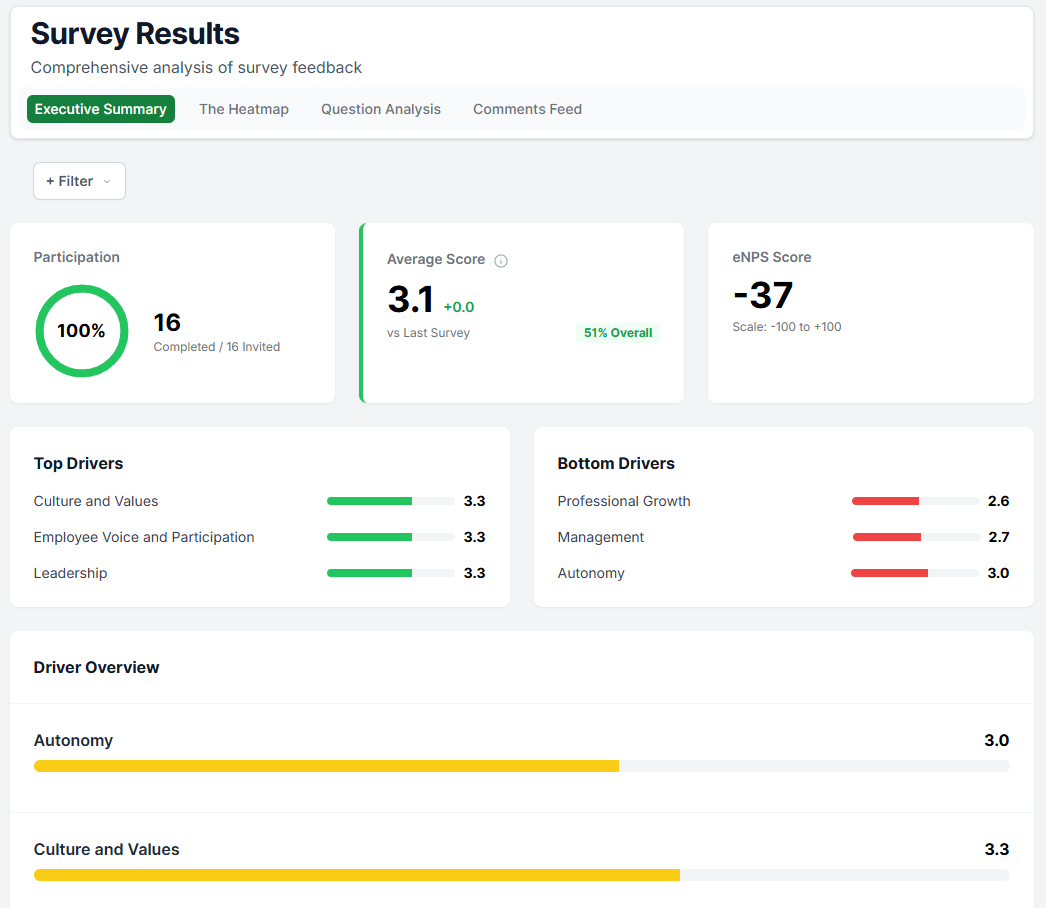
Tab 1: The Executive Summary (Health Check)
Start here for the "Big Picture." This tab aggregates the entire survey into key performance indicators.
- Engagement Score & eNPS: Your headline metrics.
- Participation Rate: Are you hearing from enough people?
- Top & Bottom Metrics: We automatically rank the 3 highest-scoring and 3 lowest-scoring themes, so you know exactly where to celebrate and where to focus.
Tab 2: The Heatmap (Comparative View)
This is the most powerful tool for spotting "Hotspots" and "Bright Spots" across different teams.
- The Grid: Rows represent your Segments (Departments), and Columns represent the Metrics (Themes).
- Colour Coding:
- Green: High performing (> 4.0).
- Yellow: Needs attention (3.0 – 4.0).
- Red: Critical area (< 3.0).
Tab 3: Questions (The Details)
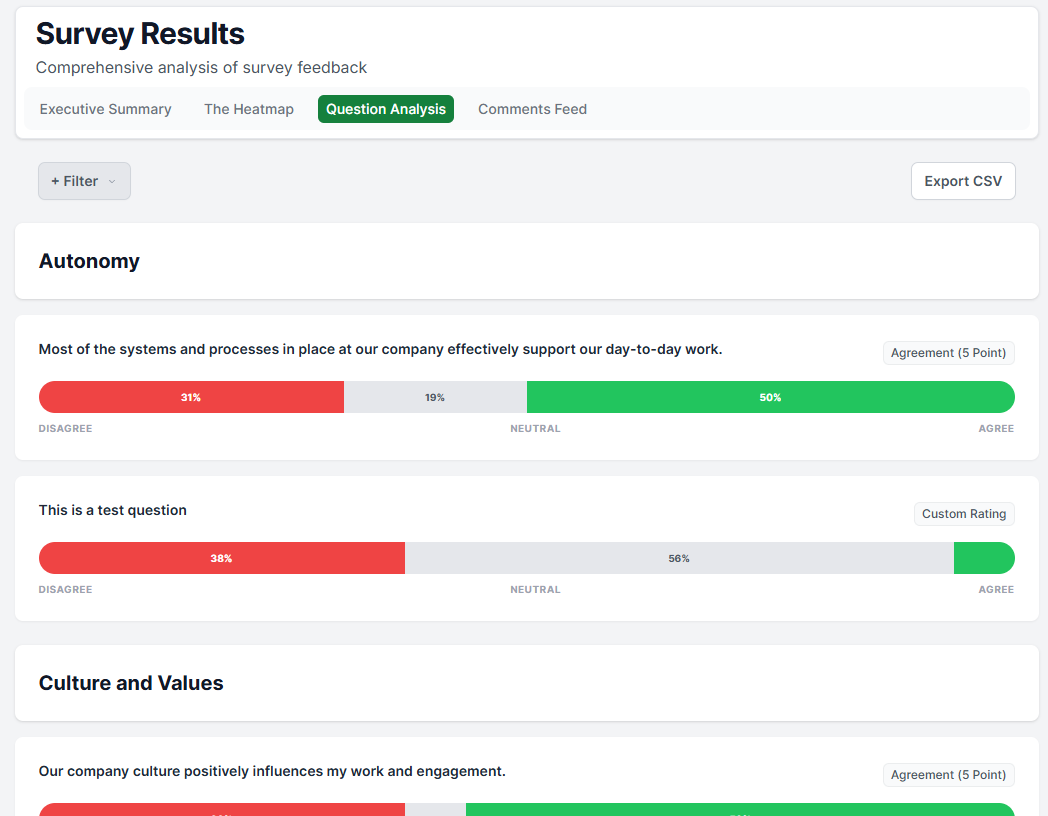
When you need to understand opinion distribution, use the Questions tab.
- Polarisation: Instead of just an average score (e.g., "3.5"), we show the Distribution Bar.
- Why it matters: A "3.5" could mean everyone is "Neutral," OR it could mean half the team is "Happy" and half is "Angry." This tab reveals those splits.
Tab 4: Comments (The Voice)
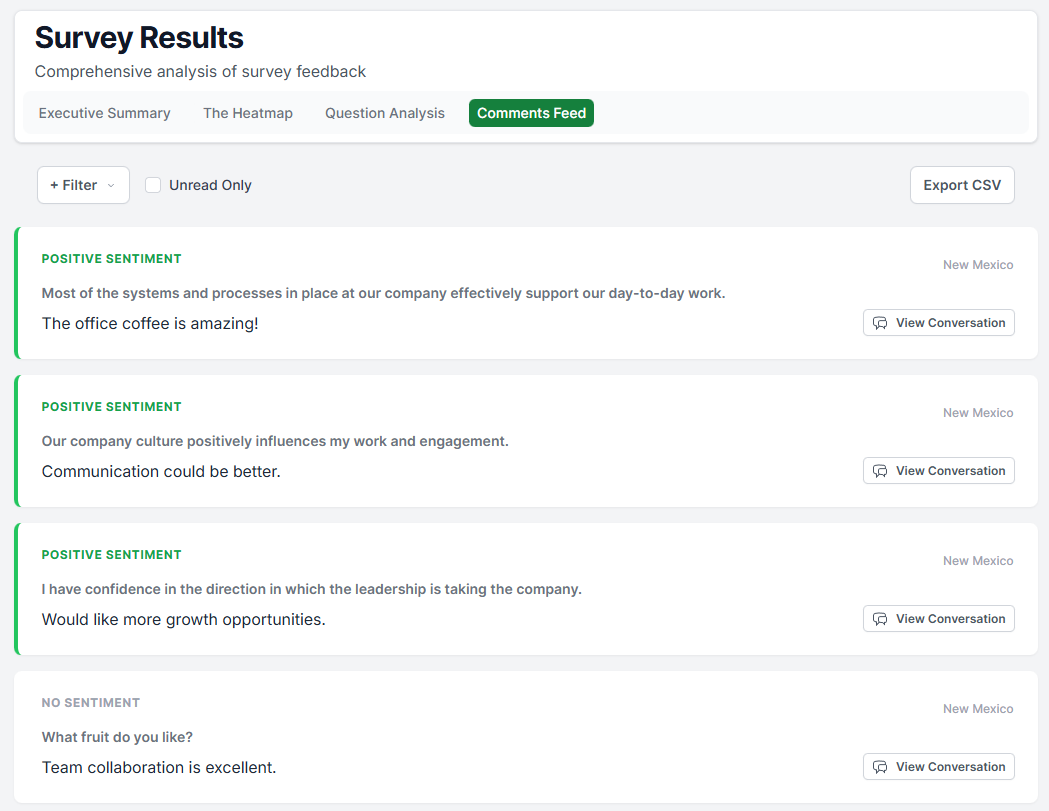
This feed captures the open-text feedback from your team.
- Sentiment Dots: We use the employee's rating on that specific question to colour-code the comment (Green/Positive, Red/Negative), so you don't have to guess the tone.
- Context: Each card displays the Metric and the Question required to interpret the feedback.
- Reply Privately: Click "Reply" to start an anonymous conversation with the respondent to request clarification. (See our guide on "Anonymous Conversations" for more).
Was this article helpful?
That’s Great!
Thank you for your feedback
Sorry! We couldn't be helpful
Thank you for your feedback
Feedback sent
We appreciate your effort and will try to fix the article